
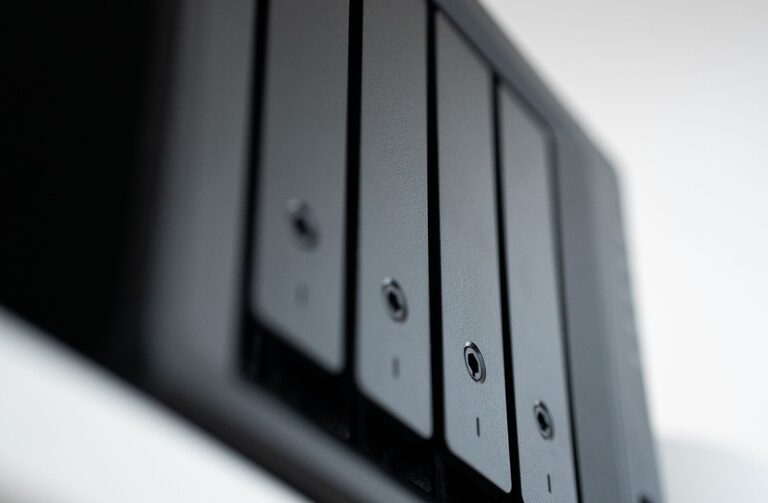
Your photos, documents, and personal files can be difficult or impossible to replace if a device is lost, damaged, or affected by a technical problem. A reliable backup plan helps protect these files and makes it easier to move them to a new computer or phone.
The good news is that backing up does not have to be complicated. With a few regular habits and more than one copy of your important files, you can reduce the risk of losing them.
What a backup is
A backup is an extra copy of a file stored somewhere other than its original location. For example, if your photos are saved on your phone, copying them to an external drive or cloud storage creates a backup.
Simply keeping files in another folder on the same device is not a complete backup. If the device fails, both the original files and the copied folder could be lost.
A useful backup system should:
– Keep more than one copy of important files
– Store copies in different locations
– Run regularly
– Be easy enough to maintain
– Allow you to restore files when needed
Use the three copy rule
A common approach is the three copy rule, often called the 3-2-1 backup method:
– Keep at least three copies of important files
– Use at least two different types of storage
– Keep at least one copy in a different physical location
For example, your photo collection might be stored on your computer, copied to an external hard drive, and uploaded to a cloud storage service. This setup protects against common problems such as a damaged computer, a lost drive, or an issue at home.
You do not need to create every copy at once. Start with the files that matter most, then improve your system over time.
Decide what needs to be backed up
Before choosing a storage method, make a list of the files you would not want to lose. These may include:
– Family photos and videos
– Personal documents
– Tax and household records
– School or work files
– Creative projects
– Downloaded files that are difficult to replace
– Contacts and important notes
– Device settings or app data
Some files may already be easy to download again, such as software installers or publicly available documents. Focus first on personal files that cannot be replaced.
It can also help to organize files into clear folders. For example, create folders for Photos, Documents, Videos, and Projects. A tidy structure makes backup and recovery easier.
Back up photos from your phone
Phones often contain years of photos, so they should be included in your backup plan. Many phones can automatically upload photos to a cloud photo service when connected to Wi-Fi.
To set this up:
- Choose a trusted cloud photo service.
- Install or open the service’s app.
- Sign in to your account.
- Turn on automatic photo backup.
- Select the upload quality and mobile data settings.
- Check that older photos have finished uploading.
Automatic uploads are convenient, but do not assume they are working without checking. Open the service occasionally and confirm that recent photos appear in your online library.
If you use more than one phone or account, make sure you understand which device is uploading photos and where those files are stored. You may also want to export a separate copy to a computer or external drive.
Back up files to an external drive
External hard drives and solid state drives are useful for creating a local copy of your files. They can store large collections of photos and videos without requiring an internet connection.
To make a local backup:
- Connect the external drive to your computer.
- Create a backup folder or use the computer’s built-in backup tool.
- Copy your important folders to the drive.
- Safely eject the drive when the process is complete.
- Disconnect the drive and store it in a safe location.
A backup tool can make this process automatic. Many computers include built-in software that copies new and changed files on a schedule. Automatic backups are generally more reliable than remembering to copy files manually.
Do not leave your only backup drive connected all the time. If malware, accidental deletion, or a power problem affects the computer, a continuously connected drive may also be affected. Disconnecting it after a backup gives you an additional layer of protection.
Consider cloud storage
Cloud storage keeps a copy of your files on remote servers. It can be helpful if your computer is lost, damaged, or unavailable. Cloud services also make it easier to access files from multiple devices.
When comparing a cloud storage service, look for:
– Automatic syncing or backup
– Enough space for your files
– Support for your computer and phone
– File version history
– Easy file recovery
– Clear privacy and security settings
– A straightforward way to download your data
File syncing and file backup are not always the same. A syncing service may copy changes across devices, including deletions. If you accidentally delete a file, the deletion might be synchronized everywhere. Choose a service with a recycle bin or version history, and learn how long deleted files can be recovered.
Cloud storage should complement, not necessarily replace, a local backup. A separate external drive gives you another copy and may allow faster recovery of large files.
Create a regular schedule
A backup is most useful when it is current. Decide how often your files change and choose a schedule that fits.
You might use:
– Automatic daily backups for active files
– Weekly backups for personal documents
– Monthly backups for less frequently changed folders
– Immediate backups after major events, such as a vacation or project
Calendar reminders can help if your system is partly manual. You can also keep a short checklist near your computer or in a notes app.
After taking many new photos, do not erase them from your phone or camera until you have confirmed that at least one backup copy is complete.
Test your backups
A backup that cannot be restored is not dependable. Test your system from time to time by restoring a few files.
Choose several items, such as:
– One recent photo
– One older photo
– A document
– A video
– A folder with multiple files
Open the restored files and check that they work properly. If a backup program reports errors, investigate them rather than assuming the files are safe.
It is also helpful to know where your backups are located and how to sign in to your cloud account. Write down recovery information and store it somewhere secure, but do not include passwords in an easily accessible file.
Protect your accounts and devices
Use strong, unique passwords for accounts that hold your backups. If available, turn on two step verification to add another sign in check.
Keep your computer, phone, backup software, and storage apps updated. Updates often include improvements that help protect devices and fix problems.
For external drives, store them away from heat, moisture, and physical damage. If a drive makes unusual noises, disconnect it and avoid relying on it as your only copy.
A simple backup plan
If you are starting from scratch, use this basic plan:
- Organize your important photos and files.
- Turn on automatic cloud backup for your phone photos.
- Copy important computer files to an external drive.
- Keep the external drive in a separate safe location when it is not in use.
- Set a weekly or monthly reminder to review your backups.
- Test a few restored files every few months.
- Replace storage devices when they become unreliable or too small.
The best backup system is one you can maintain. Start with your most important files, use more than one storage method, and check your copies regularly. These simple steps can make your digital memories and everyday documents much easier to protect.